Free AI Audio Splitter

Your song. Your ears. The final say.

Upload audio, separate vocals and instrumentals with AI, then preview and download both tracks.

VOCAL & INSTRUMENTAL SEPARATORONLINE AI SEPARATION

Start with a song

Choose an MP3 or WAV to separate into two tracks.

MP3 / WAV · 30 MB max · 0.5 seconds–5 minutes
Vocals and accompaniment are separated by cloud AI.Preview and download both tracks separately.

How to Split Audio into Vocals and Instrumentals?

1

Step 1. Upload Audio File

Sign in with Google, then choose an MP3 or WAV up to 30 MB and five minutes.

Interface example
sample-song.mp3
Choose audio
More details

Sign in with Google, then start with an MP3 or WAV file that you have permission to edit. A song with a clear vocal line is a useful first test: you can compare the original melody with the isolated voice and the accompanying music. Select a file between half a second and five minutes, no larger than 30 MB. Keep your original recording somewhere safe; the audio splitter creates new output files rather than overwriting it. If your track is longer, use the audio cutter to prepare a shorter section before separation. Choose the cleanest source you have, because existing distortion and heavy compression cannot be repaired simply by separating the mix.

2

Step 2. Wait for Processing

AI processes your audio online and creates two tracks.

Interface example
sample-song.mp3
Separating vocals and instrumental…
More details

Sign in with Google, choose your audio, and start separation. Your audio is uploaded and processed by cloud AI; no model installation is needed. Each account can process one task at a time. Processing time depends on the audio length and service load, rather than the speed of your computer. Wait for completion, then preview and download both tracks. If a progress check fails temporarily, the website checks the existing task again; avoid submitting it twice. Reloading the page can restore your latest task and its progress. Download the tracks you need before the results expire.

3

Step 3. Download Audio

Listen to vocals and music, then save separate WAV files.

Interface example
Separated vocals▷ Listen · ↓ Download
Separated instrumental▷ Listen · ↓ Download
More details

When processing finishes, two players appear: Vocals and Instrumental. Listen to each one before downloading, preferably using headphones at a comfortable volume. Compare sections with singing and sections without singing to notice any remaining instruments or vocal bleed. Each download is a separate stereo WAV file at 44.1 kHz with 16-bit PCM samples. Save the vocal track for focused listening or save the instrumental track for practice, subject to your rights in the recording. Downloading one track does not remove the other. When you finish, use the remove button to delete the completed job and return to an empty workspace. Free-account results are available for 24 hours after completion. Download them before they expire. Deleting completed results does not restore used minutes.

UNDERSTAND YOUR AUDIO

Hear Our Audio Splitter in Action

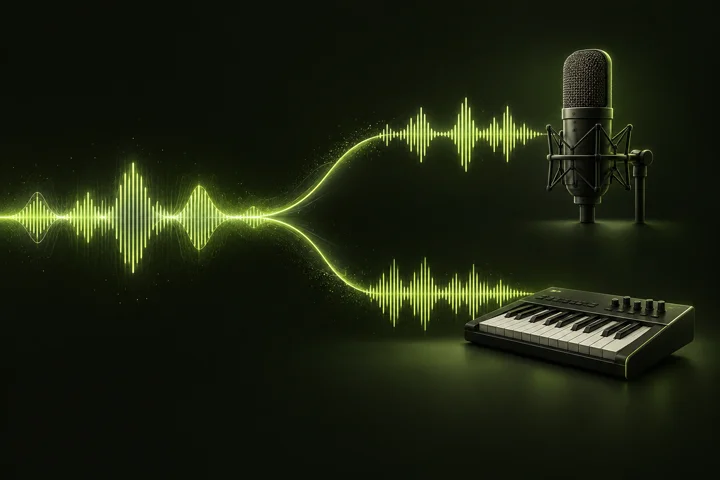
AI-generated illustration of an audio waveform splitting toward a vocal microphone and an instrumental keyboard
AI-generated concept illustration: vocals and combined accompaniment; not an actual separation result.

Hear a separation example

A 7-second synthetic test: computer speech mixed with a 220 Hz tone. Both outputs were actually separated by Demucs; this is not a real-song quality benchmark.

Original mix

Separated vocals

Separated instrumental

Spoken transcript: This is a local audio separation test. Keep the voice and separate the music.

More Audio Tools and Help

Key Features of AI Audio Splitter

AI-generated scene of a singer recording with headphonesPreview quality
AUDIO SPLITTER / 01

Preview Your Separated Audio

Listen to vocals and accompaniment separately before saving either file. Separation quality depends on the recording: reverb, overlapping instruments, and distorted vocals can leave audible artifacts.

Split your audio ↗
AI illustration of a digital recorder and audio file cardsAudio formats
AUDIO SPLITTER / 02

Split MP3 and WAV Audio

Choose a song or recording up to 30 MB and five minutes long. This version accepts audio files only; video files need an audio export first.

Split your audio ↗
AI-generated scene of a musician practicing at a keyboardAI processing
AUDIO SPLITTER / 03

Simple AI Audio Splitting

Start separation and follow its progress online. Processing time depends on the audio length and service load.

Split your audio ↗

Output illustration · not interactive

Separated vocals▷ Listen · ↓ Download WAV
Separated instrumental▷ Listen · ↓ Download WAV
Download tracks
AUDIO SPLITTER / 04

Free Two-Track Audio Separation

Sign in with Google to process 10 minutes of audio free each month. Preview and download both tracks. See pricing for larger allowances.

Split your audio ↗

Output illustration · not interactive

Original mixAI processing
Separated vocalsWAV
Separated instrumentalWAV
How separation works
AUDIO SPLITTER / 05

Separate Vocals and Background Music

Keep the voice for focused listening or save the combined accompaniment for practice. This separates vocals from music; it does not isolate every instrument or remove all background noise.

Split your audio ↗

Scene images are AI-generated illustrations. Interface examples explain the workflow; compare the outputs in the listening section.

Who Uses Our Free AI Audio Splitter?

AI scene of a DJ at a mixing console01

DJ & Producer

Explore a vocal idea or inspect an arrangement using recordings you are authorized to edit. Audition the result before bringing it into your production software.

AI scene of a singer rehearsing karaoke at home02

Karaoke Lover

Download an instrumental track to rehearse your singing. Listen for remaining vocals before using the accompaniment in a performance.

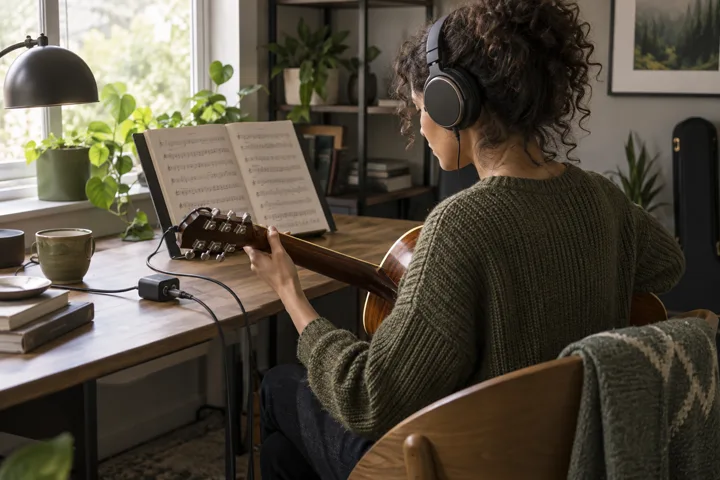
AI scene of a guitarist learning from sheet music03

Music Learner

Study phrasing in the vocal track and follow the harmony in the accompaniment. Compare both with the original to understand their roles.

AI scene of a language learner listening and taking notes04

Language Learner

Focus on pronunciation and rhythm in a vocal recording. Keep the original for context; this tool does not generate lyrics, translations, or transcripts.

Explore More Features of Our Audio Splitter

01 /

AI-Powered Voice Isolation

Demucs estimates the voice and music in a mixed recording. The result is useful for listening and experimentation, but is not a recovery of the original studio stems.

02 /

Simple and Beginner-Friendly

Choose a file, start processing, then listen. No model selection or mixing setup is required. A failed job shows an error so you can correct the source and try again.

03 /

Remove Instrumental from a Song

Want the voice instead of karaoke accompaniment? Download the Vocals output from the same job. Lead and backing vocals may remain together in that file.

FAQs

Understand the quality limits before exporting

A finished job means the model produced files, not that it recreated the original studio stems. Dense arrangements, distorted singing, chorus effects, live audience noise, and reverb can make clean separation difficult. Quiet artifacts may become more noticeable when a track plays alone. The output can still be useful for listening and practice, but critical production work needs your own quality judgment. We do not promise lossless conversion, perfect vocal removal, or studio-quality isolation. Try a cleaner source or a shorter section if a result is disappointing. This version provides one model configuration so the first workflow stays straightforward.

Where does my audio go?

Your audio is uploaded and processed by the Demucs model hosted on Replicate. The website saves the separated tracks in private storage for playback and download through your account. Original uploads are scheduled for cleanup after the task ends. Free-account results are available for 24 hours after completion, then cleaned up. You can also delete completed results earlier. Closing the browser does not immediately remove the files from the service. Downloads saved to your device remain under your control and are not removed when you delete a task. See the privacy notice for provider processing and retention details.

Formats, limits, and troubleshooting

Upload an MP3 or WAV between 0.5 seconds and five minutes, up to 30 MB. Each completed task produces two 44.1 kHz stereo WAV files with 16-bit PCM samples. Conversion may involve resampling and quantization, so the original encoding is not preserved. Export audio from videos first. MP3 output and separate instrument stems are not included. Re-export invalid files from your audio application before trying again. No local model service needs to be installed or started. A temporary progress-query failure keeps the existing task for another check; avoid submitting it again.

Is this audio splitter free to use?

Yes. After Google sign-in, the Free plan includes 10 minutes per month, Pro includes 250, and Studio includes 600. Usage counts the source audio duration once, rounded up to the next whole second, not each output track. Starting a task reserves its duration; a confirmed failed task releases that reservation. Deleting completed results does not restore used minutes. Annual plans also refresh monthly, and unused monthly minutes do not roll over. The tool shows your remaining monthly allowance. See the pricing page if you need more minutes; the free plan does not provide unlimited processing.

Can I remove drums, bass, or background noise?

The available downloads are vocals and instrumental only. There are no separate buttons for drums, bass, guitar, or piano, and this workflow is not a dedicated noise-reduction or speech-enhancement tool. Do not expect it to clean every noisy voice recording. If your goal is simply to shorten a track, use the audio cutter instead; that operation selects a time range without trying to recognize instruments. If your goal is to understand which kind of splitting you need, the tool guide explains the difference. Keeping these tasks separate makes the controls easier to understand and the output easier to evaluate.

Audio Splitter Guides & Tutorials

AI concept illustration of one ribbon splitting into two musical paths

How to Split a Song into Two Audio Tracks

Choose a valid MP3 or WAV in the tool above and start separation. When both outputs appear, play Instrumental and check a section with singing. Download it if the result works for your practice; keep your original recording for comparison.

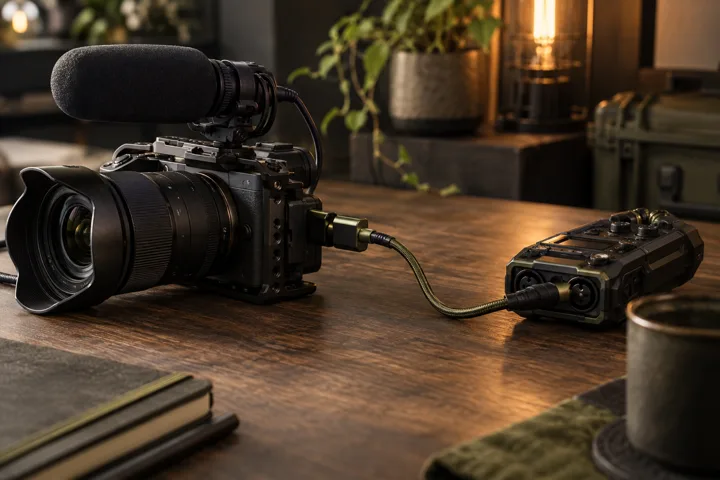
AI scene of a video camera connected to an audio recorder

How to Prepare Audio from a Video

This version cannot open a video directly. In your video editor, export the audio as WAV or MP3. Keep it within the five-minute and 30 MB limits, then select the exported file here. The result is audio only; replace the soundtrack in your editor if needed.

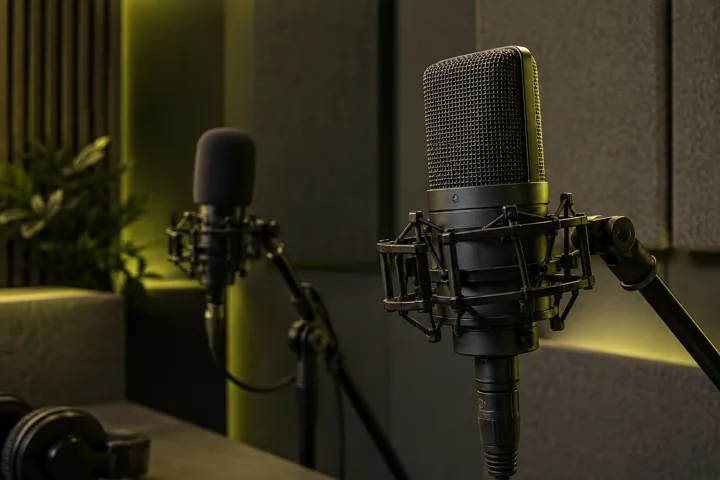
AI scene of two microphones at different depths in a recording booth

Understanding Lead and Background Vocals

This two-track model groups vocals together. It cannot deliver separate lead and backing-vocal downloads. Listen to the vocal output to hear what was retained; do not assume that a quiet harmony will have its own track.